Olares 1.12.5 is now available. This release adds official support for NVIDIA DGX Spark, brings more consistent GPU handling across all GPU modes, refines common workflows in Settings and Desktop, and improves setup and connection reliability. A big thank you to everyone in the community who shared feedback and reported issues. Many of the improvements in this release came directly from your input.
For a full list of changes, check out our detailed release notes.
What is Olares?
Olares is an open-source personal cloud operating system designed to empower users with local AI capabilities and private, self-hosted services. It allows you to transform your hardware into a powerful AI personal cloud for running cutting-edge AI models, managing personal data, automating your home, and hosting decentralized apps.
What’s new in 1.12.5?
NVIDIA DGX Spark support
Olares can now be installed on NVIDIA DGX Spark.
DGX Spark is designed for AI workloads that require large amounts of unified memory, making it a practical choice for running AI models locally at scale. Once Olares is installed, you can deploy supported AI apps from the Olares Market with a single click.
See the DGX Spark installation guide for details.
Thank you, Kickstarter backers
To everyone who backed Olares One on Kickstarter: your support gave this project its first momentum, and it continues to matter as the product grows.
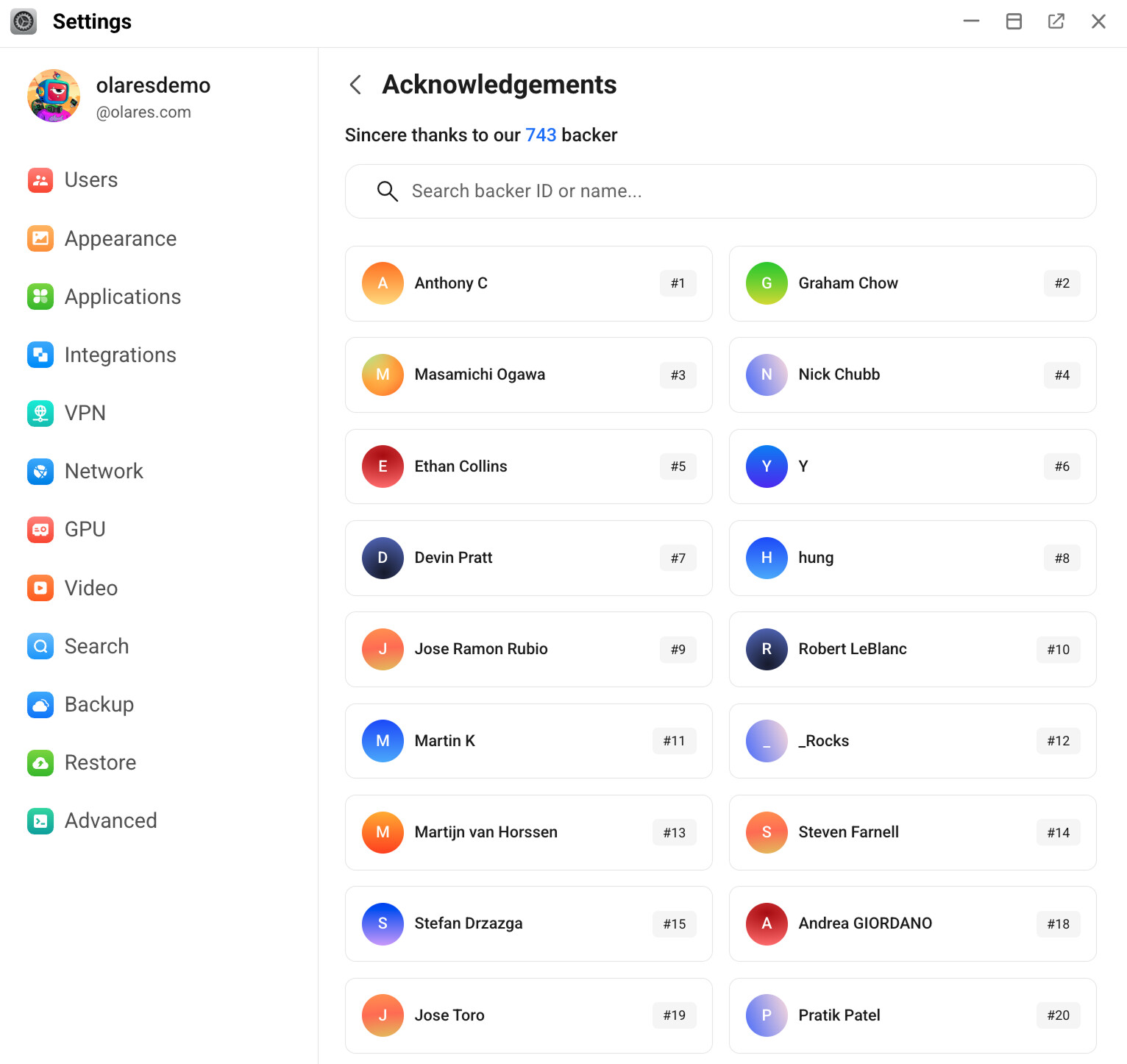
In 1.12.5, we have added a dedicated page in Settings to recognize early Kickstarter supporters. It is a small gesture, but one we wanted to make inside the product itself.
GPU management across all modes
Several GPU-related issues that users have reported are addressed in this release.
A common problem was GPU configuration being lost after an app update. Olares now preserves your GPU settings through upgrades, so your configuration stays in place when you update an app. Related to this, apps that use GPU resources are now stopped and cleaned up more reliably when they are closed or updated, which prevents them from holding onto resources that other apps need.
Automatic GPU scheduling has also been extended to all three GPU modes. Previously, it only worked in Time slicing mode. In Memory slicing and App exclusive mode, you had to assign GPU resources manually before an app could start. Now Olares handles this across all modes, so apps start and resume more consistently.
GPU information in Settings and app details has also been updated to be clearer and more accurate.
For details, see the GPU management documentation.
More control over your apps and settings
This release rounds out several Settings workflows that were previously incomplete or scattered.
-
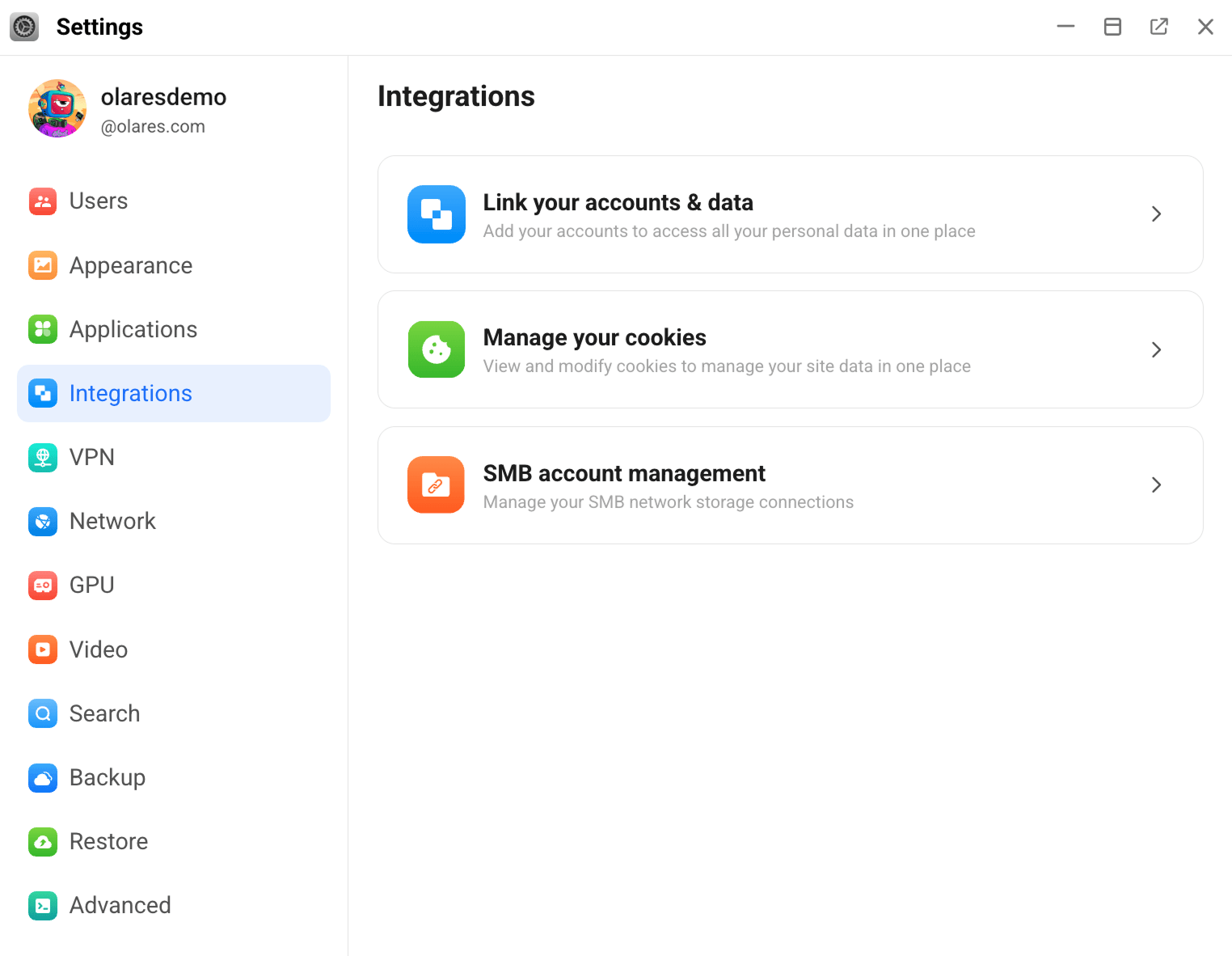
SMB account management: SMB accounts you have created are now listed in one place, and you can remove them from there directly.
-
Uninstall with data removal: When uninstalling an app, you can now choose to delete its data at the same time. This is useful when you want a clean reinstall rather than carrying over old settings.
-
App search: A search bar has been added to the app list in Settings, so you can find a specific app without scrolling through the full list.
-
Sign out: The Sign out action has moved from the Desktop dock into Settings, where account-level actions belong.
Notifications and status messages are also more consistent across the system. App status now includes icons, and a clear alert appears when an app pauses because GPU memory is insufficient.
Improved setup and connection reliability
For Olares One users, setup is more reliable in this release. Activation now includes a time synchronization check, which reduces failures caused by clock drift or timezone mismatches. DNS handling has also been improved for networks with DHCP-assigned search domains, a configuration that could previously prevent system activation from completing.
On the connection side, a fix has been applied that prevents proxy configuration reloads from cutting off active sessions. In practice, this means things like Steam gaming sessions and running network services are less likely to be interrupted unexpectedly. Remote access URL state is also kept in sync with your settings, so what you see in Settings reflects what is actually reachable.
A number of smaller fixes are also included for edge cases that caused false device status alerts or unnecessary errors during startup and recovery.
New apps on shelf
Since the last release, the following applications have been added to the Market and are available for one-click installation:
-
OpenClaw: A personal AI assistant that runs locally on your own hardware, keeping your data under your control.
-
JupyterHub: A multi-user Jupyter Notebook platform for shared, managed notebook environments.
-
MacOS: Run macOS on your Olares device.
-
Firefly III: A self-hosted personal finance manager for tracking income and expenses.
-
FreshRSS: A lightweight, self-hosted RSS and Atom feed aggregator with filtering and customization options.
-
Metube: A web interface for yt-dlp that supports playlist downloads from YouTube and many other sites.
-
LibreChat: A self-hosted ChatGPT-style interface that connects to multiple AI model providers or custom endpoints.
-
PaddleOCR: An OCR and document AI engine offering end-to-end solutions from text extraction to document understanding.
-
ACE-Step 1.5: An open-source music generation model that runs on consumer hardware.
-
Agent Zero: A personal agent framework that is transparent, customizable, and interactive.
-
solidtime: An open-source time tracking application for freelancers and agencies.
-
Medusa: An open-source e-commerce platform for building custom online stores.
-
ntfy: A simple HTTP-based notification service for sending alerts to your phone or desktop from scripts and apps.
-
Twenty: An open-source CRM platform with flexible building blocks for managing customer relationships.
How to update to 1.12.5
Important
Upgrade your LarePass to the latest version (1.9.20) from your app store first.
Restart AI applications
No action is required when upgrading from v1.12.4.
If upgrading from v1.12.3 or earlier, manually restart all GPU-dependent AI applications.
-
Open the LarePass app, and navigate to Settings > System > System update.
-
Verify that a new version is available and tap Upgrade.
-
Choose an upgrade method and tap Confirm.
-
When prompted, tap Continue to start installation.
-
When the update is complete, you’ll see a success message in LarePass.
-
Manually refresh your Olares desktop to sync the latest changes.
What’s next?
Your support and feedback inspire everything we build. We’re actively working on exciting updates and improvements, and we can’t wait to share the next version with you. Big things are ahead!